
Commands and features
Chat relay
Section titled “Chat relay”Minecraft → Discord
Section titled “Minecraft → Discord”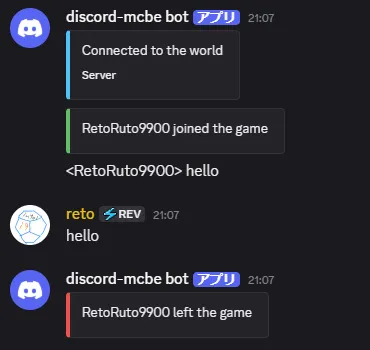
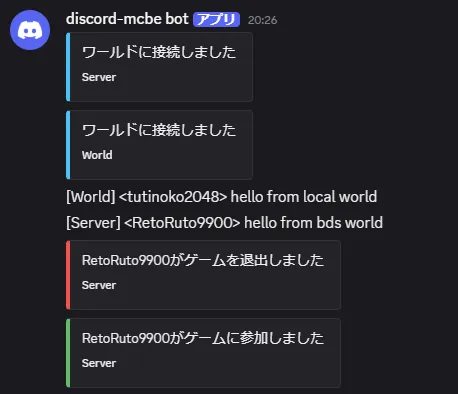
Normal chat from players in a connected world is sent to CHANNEL_ID. Join, leave, world-connect, and disconnect events are sent as embeds.
- When multiple worlds are connected, the world name is added to identify the source.
- Minecraft
§color codes are removed by default. - Switch to webhook mode to show the player name as the sender of the Discord message.
Discord → Minecraft
Section titled “Discord → Minecraft”
Messages from users in CHANNEL_ID are broadcast to every connected world.
- Messages sent by this bot or other bots are not relayed.
- The member’s Discord display name is used as the sender.
- Replies include the source author’s name and a short content preview.
- Messages with attachments show the file count.
- Message filters can shorten long messages or replace or reject content matching a regular expression.
Connecting to multiple worlds
Section titled “Connecting to multiple worlds”discord-mcbe can connect multiple Minecraft worlds at the same time. Give each world a unique name so that messages can be identified by their source. See world setup for connection instructions.
After setting a world name with /dmc:setname <name>, specify world in Discord’s /list or /command to target one world. Omitting world targets every connected world.
Send death logs
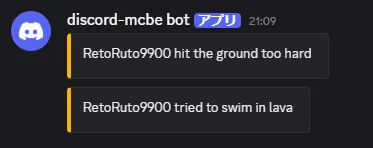
Section titled “Send death logs”When a player dies, discord-mcbe sends the Minecraft death message for the cause of death to Discord. When multiple worlds are connected, the source world name is also shown.
Use bot.show_death_messages in config.json to control death logs. It defaults to true; set it to false to disable them. See configuration for details.
Additional Discord commands
Section titled “Additional Discord commands”At startup, the bot registers commands in the Discord server specified by GUILD_ID.
| Command | Permission | Description |
|---|---|---|
/ping |
Everyone | Show latency for the bot and every connected world |
/list [silent] [world] |
Everyone | Show player counts and names |
/command <command> [raw] [world] [silent] |
Administrator | Execute a Minecraft command and display its result |
/panel create |
Administrator | Create the status panel in the current channel |
/panel show |
Administrator | Show a link to the stored status panel |
/command
Section titled “/command”Enter the Minecraft command in command without a leading slash.
/command time set day world:survival silent:true- Omitting
worldexecutes the command in every connected world. rawdisplays the raw result as JSON.- A result longer than the embed threshold is attached as
results.txt. silentmakes the response visible only to the person who ran it.
/panel - Status panel
Section titled “/panel - Status panel”/panel create posts an embed that periodically refreshes with:
- Discord bot ping and uptime
- World name, host type, latency, and connection time
- Player count and player names
- The discord-mcbe version
Only one panel is stored. Creating another removes the old panel. Change the refresh interval in configuration.
Command permissions
Section titled “Command permissions”By default, commands marked as requiring Administrator permission can only be run by users with the server’s Administrator permission. To change access for individual commands, open Server Settings > Apps > Integrations > [Bot name] > Commands.
Additional Minecraft commands
Section titled “Additional Minecraft commands”| Command | Permission | Description |
|---|---|---|
/dmc:discord-mcbe |
Operator | Open the settings form |
/dmc:dmc |
Operator | Alias for /dmc:discord-mcbe |
/dmc:setname <name> |
Operator | Change the world name |
/dmc:disconnect |
Host | Disconnect from discord-mcbe |
Server console
Section titled “Server console”Type a Minecraft command into the terminal running discord-mcbe to execute it in every connected world.
say Server maintenance starts in 10 minutes