
Use the launcher
The launcher installs, updates, and switches versions of the discord-mcbe application. It opens a keyboard-controlled terminal interface (TUI). For a normal update, open the launcher and select Stable.
Update to the latest stable release interactively
Section titled “Update to the latest stable release interactively”-
Double-click
updater.exein the discord-mcbe folder. -
The launcher checks for its own updates when it starts. If a new launcher is available, confirm the update. When the window closes, double-click
updater.exeagain. -
When the version menu appears, use the up and down arrow keys to select Stable, then press Enter. Stable is the recommended release for normal use.
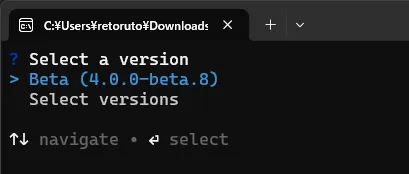
-
Wait for the update to finish. After
Successfully installed discord-mcbe ...appears, the window closes automatically. -
Double-click
start.batto start discord-mcbe again.
-
Open the discord-mcbe folder in a terminal. The first time only, make the files executable:
chmod +x updater start.sh -
Start the launcher:
./updater -
The launcher checks for its own updates when it starts. If a new launcher is available, run
./updateragain after the update finishes. -
Use the up and down arrow keys to select Stable, then press Enter. The update is complete when
Successfully installed discord-mcbe ...appears.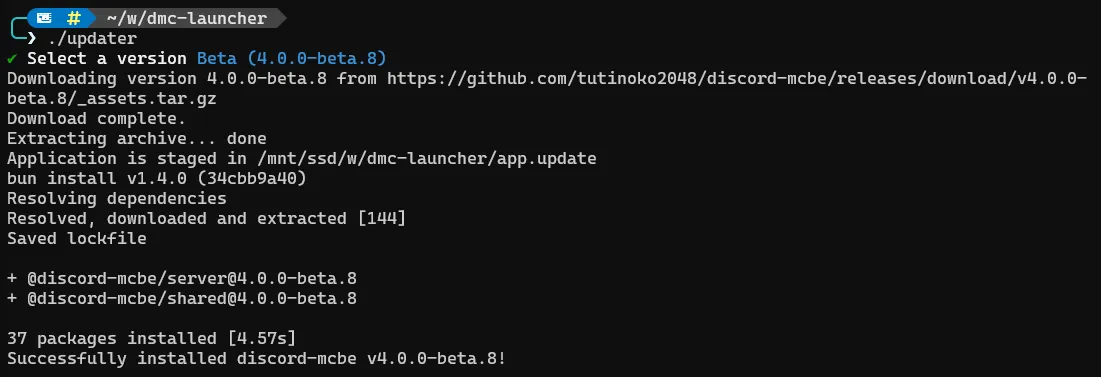
-
Start discord-mcbe again:
./start.sh
Select a version from the command line
Section titled “Select a version from the command line”The interactive Stable option is enough for normal updates. Use a command when you need a beta, a specific older release, or rollback.
Run these commands in PowerShell or Command Prompt.
.\updater.exe [version] [options]| Task | Command |
|---|---|
| Update to the latest stable | .\updater.exe stable |
| Update to the latest beta | .\updater.exe beta |
| Install a specific version | .\updater.exe 4.0.0 |
| Update the launcher itself | .\updater.exe upgrade |
| Install a launcher version | .\updater.exe upgrade 4 |
| Restore the previous version | .\updater.exe rollback |
| Reinstall the same version | .\updater.exe stable --force |
Run these commands in a terminal.
./updater [version] [options]| Task | Command |
|---|---|
| Update to the latest stable | ./updater stable |
| Update to the latest beta | ./updater beta |
| Install a specific version | ./updater 4.0.0 |
| Update the launcher itself | ./updater upgrade |
| Install a launcher version | ./updater upgrade 4 |
| Restore the previous version | ./updater rollback |
| Reinstall the same version | ./updater stable --force |
Use one of these values for [version]. Omitting it opens the interactive menu.
| Argument | Behavior |
|---|---|
stable |
Select the latest stable release |
beta |
Select the latest beta release |
4.0.0 |
Select that exact release; replace the number with the version needed |
upgrade |
Update the launcher itself to the latest release |
rollback |
Swap the current application with the previous one in app.backup/ |
Options
Section titled “Options”| Option | Purpose |
|---|---|
-f, --force |
Force a reinstall or a switch such as beta to stable; use it with a version argument |
--dry-run |
Download and verify the selected version without changing installed files |
-c, --cwd <path> |
Update the specified folder instead of the current folder |
--no-interactive |
Hide menus and confirmations; when no version is given, select the latest stable release |
-v, --version |
Show the launcher’s own version |
-h, --help |
Show the available arguments and options |
Restore the previous version after a problem
Section titled “Restore the previous version after a problem”After a successful update, the launcher keeps the previous application in app.backup/. Stop discord-mcbe and run .\updater.exe rollback or ./updater rollback, depending on your OS, to restore it.
Run updater upgrade to update the launcher itself. The interactive screen also checks automatically when it starts.